

Simple step-by-step help
iToys App Guide
Follow these steps to successfully connect your new toy to the app.
1 Download the app

- Find iToys in the Apple App Store or Google Play Store.
- Press Get or Install.
- Wait for the app to finish downloading.
2 Connect your toy

1. Allow Bluetooth access
Open iToys. When the app asks to use Bluetooth or find nearby devices, press Allow or OK.
Bluetooth permission is required for the app to connect to your toy.

2. Turn on Bluetooth and your toy
- Press Allow or Settings if your phone asks you to turn on Bluetooth.
- Press and hold the power button on your toy for 3 to 5 seconds.
- Keep the toy close to your phone while the app searches for it.
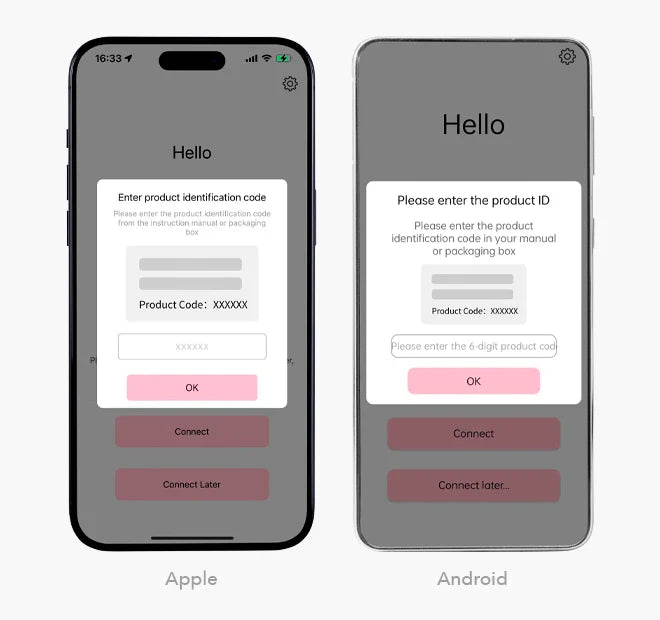
3. Enter the product code
Enter the six-digit product code shown on your toy's box or instructions.
For the iToys products we carry, the code is usually 520201. If your box shows a different code, use the code on the box.

4. Look for the mode screen
When the mode selection screen appears, your toy is connected and ready to use.
3 Use the toy and app
Choose one of the six modes shown in the app. Start with Automatic Mode if this is your first time.

Automatic Mode
Choose a vibration setting and adjust the strength. Tap a pattern to begin. Tap it again to stop.

Music Mode
Choose music on your phone. The toy responds to the beat. Use the controls to play, pause, skip or repeat.

Sound Mode
The toy responds to sounds around you. Move the Sensitivity control lower or higher to change how strongly it responds.

Immersion Mode
Touch, slide or tap your finger on the screen to create your own vibration pattern.
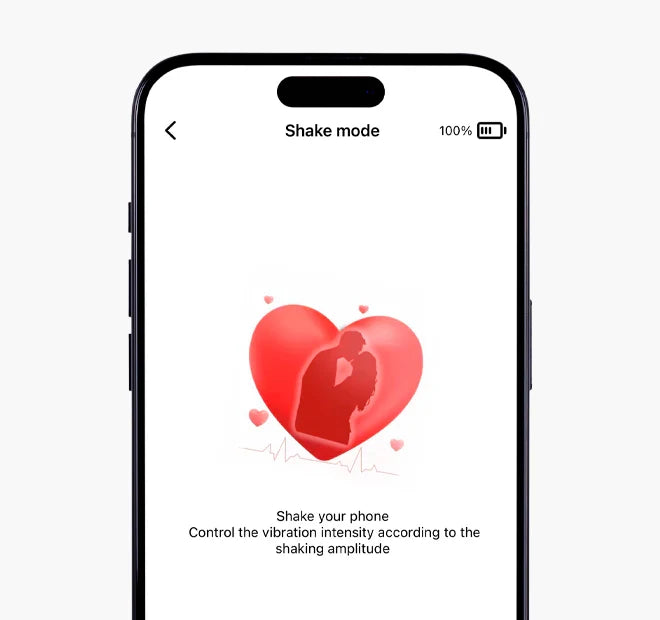
Shake Mode
Move your phone to control the toy. Stronger movement creates stronger or more frequent vibrations. Hold your phone securely.
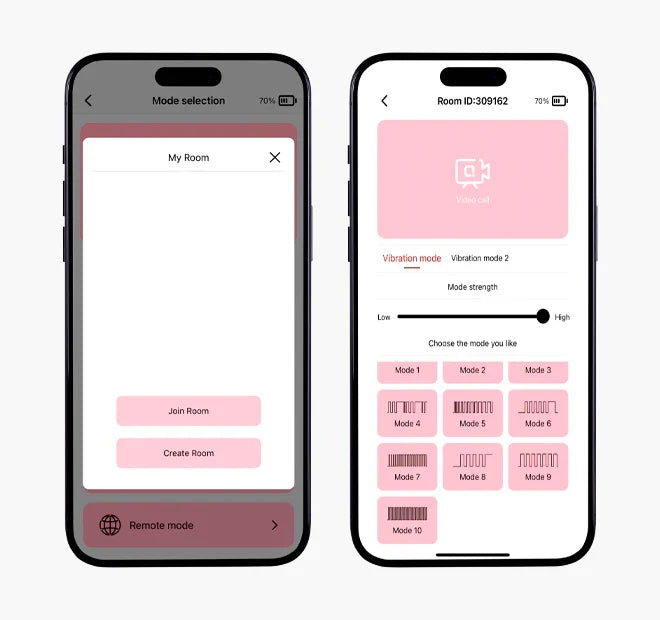
Remote Mode: Create a room
- Your partner installs the iToys app.
- Open Remote Mode.
- Press Create Room.
- Tell your partner the Room ID shown at the top of your screen.

Remote Mode: Join the room
Your partner opens Remote Mode, presses Join Room and enters the Room ID you provided.

Remote Mode: Start a video call
Press the video icon at the top of the room screen. The app sends your partner a video call invitation.

Remote Mode: Answer the call
Your partner presses the green Answer button to accept the call.

Remote Mode: Control the toy
- Minimize the call window to return to the toy controls.
- Tap a mode or pattern to start the toy. Tap it again to stop.
- When finished, press Hang up and turn off the toy.
If the call disconnects: Use the power button on the toy to turn it off.
4 Change the app language
iToys uses the same language as your phone.
- Change the language in your phone's Settings.
- Close iToys and open it again.
5 If it will not connect
- Make sure Bluetooth is on.
- Charge the toy and turn it on.
- Keep the iToys app open while using the toy.
- Move the toy closer to your phone.
- Remove a thick phone case or other objects that may block the signal.
- Turn off other Bluetooth devices nearby.
- Close iToys and open it again.
- Restart your phone.
- Check the App Store for an iToys update.
- If needed, delete the app and install it again.
6 Common questions
Does nearby play need Wi-Fi?
No. Nearby control uses Bluetooth. Remote Mode and video calling need an internet connection.
Can I connect more than one toy or phone?
For the best connection, use one toy with one phone at a time.
Can more than one partner join Remote Mode?
No. A Remote Mode room is for two people only.
How do I connect a different toy?
Press the gear icon in the top-right corner. Choose Replace product code, turn on the new toy and enter its code.
Why does the app ask for my camera or microphone?
Sound Mode needs the microphone. Video calling needs the camera and microphone. You can leave these features off if you do not use them.
How do I update the app?
Open the App Store or Google Play. Search for iToys and press Update if you see that button.
App screens may look a little different after an update. iToys is a third-party app. The Luv Coach does not develop or operate it.